
Xterium Wallet
Xterium is the official wallet for the XODE Blockchain. Its current version is Xterium: XODE Wallet, an app for Android and iOS with a pink logo.
Install the app
Two Xterium apps are in the stores
The older Xterium app is still listed on Google Play and the App Store. Make sure you install Xterium: XODE Wallet, the one with the pink logo.
| Install this one | Older version | |
|---|---|---|
| Logo |  |  |
| Name in the store | Xterium: XODE Wallet | Xterium |
What you can do with it
- Keep your keys on your phone. Xterium is non-custodial: your keys are encrypted on your device and unlocked with a PIN or biometrics. Xterium never sees your recovery phrase.
- Hold XON, USDT and other assets on XODE and Polkadot Hub in one portfolio.
- Send and receive with QR codes and an address book.
- Stake XON with collators and earn a share of block rewards. See XODE Staking.
- Follow governance. See on-chain treasury proposals; council members can vote in the app. See XODE Governance.
- Run a node from your phone with XODE omni and earn rewards. See When Phones Become Nodes.
- Use Ethereum-compatible apps through a separate EVM account and WalletConnect. See EVM Smart Contract.
- Move USDT between Polkadot Hub and XODE through XCM. This is still rolling out.
- Use it in English, Korean, Japanese or Chinese. The app follows your device's language.
Back up your recovery phrase
Xterium is a self-custody wallet. Write down your recovery phrase and keep it somewhere safe: if you lose it, Xterium can't recover your wallet.
Older versions
The sections below cover earlier Xterium releases and the Xode Wallet that came before them.
Xterium app and browser extension (teal logo)
The older Xterium app is still available on Google Play and the App Store. Its browser extension is on the Chrome Web Store.
Browser extension beta: manual installation (Chrome)
Xterium Wallet Browser Extension is a browser-based digital wallet designed to interact with Xode Blockchain, directly from your browser. This extension securely stores users' private keys and allows seamless access to blockchain networks, enabling actions like sending and receiving cryptocurrencies, managing tokens, and interacting with smart contracts.
Download the package (Zip file) here:
- Xterium v0.2.2 (Beta)
- Xterium v0.2.0 (Beta)
- Xterium v0.1.3 (Beta)
- Xterium v0.1.2 (Beta)
- Xterium v0.1.1 (Beta)
Extract the Zip file into a directory (chrome-mv3-prod)
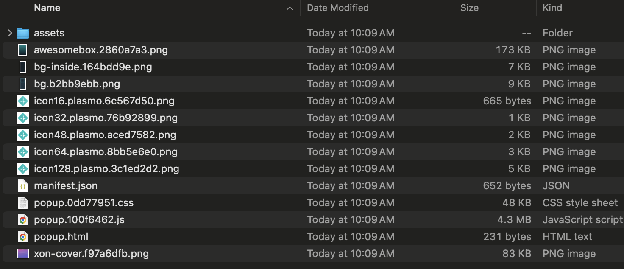
Open Chrome (chrome://extensions/) and load the directory (dist)
- Open in the URL Address: chrome://extensions/
- Toggle the Developer switch:

- Load the directory using Load unpacked:

- You should be able to see the extension available in your Chrome
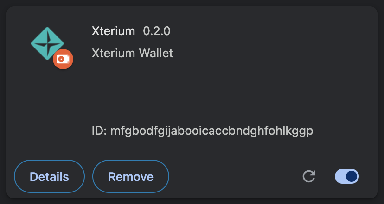
Now you can start using the Xterium Wallet in your extension button.
- Open the Chrome extension icon and pick Xterium Wallet, you can pin it if you want.

Using the browser extension beta
First time opening the wallet
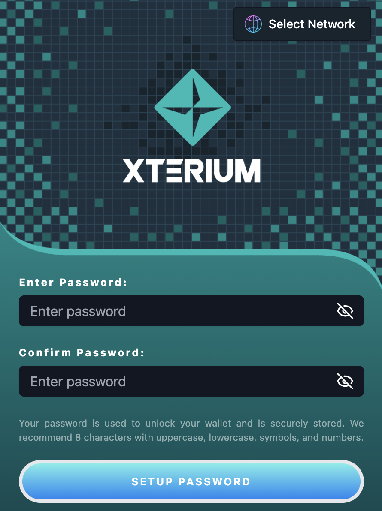
- Setup your password (make sure you remember this, there is no way we can help you recover if you forget your password. Without your password you cannot access all your wallet information.
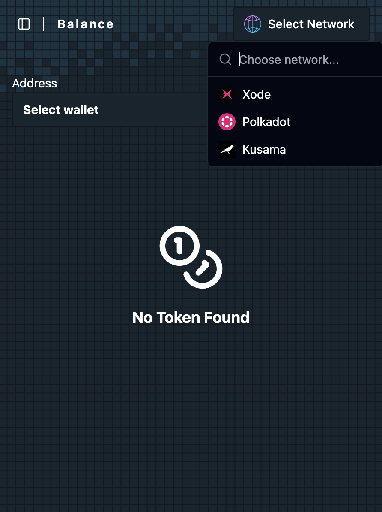
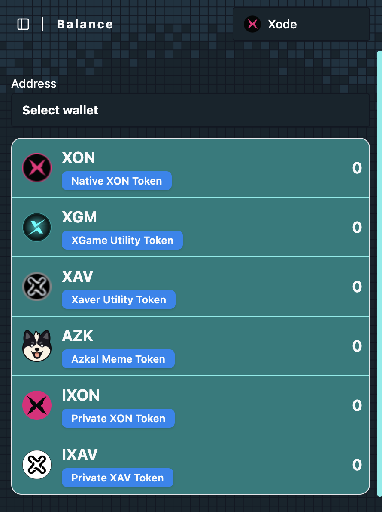
- Since Xterium will support multiple networks in the Polkadot ecosystem, the first thing that you should do is to select the Xode network.
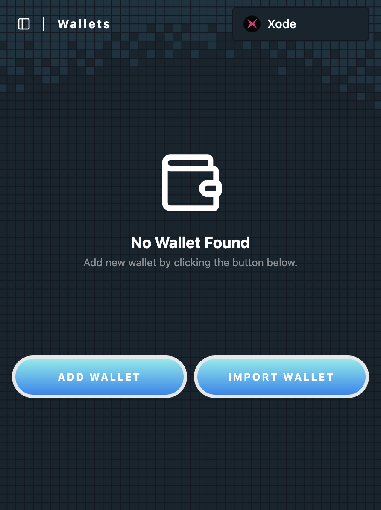
- Then we should add our wallet addresses. Go to the Sidebar Menu and click Wallets. You can either add a new wallet or import an existing wallet using seed phrases (private keys).
- To create a wallet you must provide the name of the wallet and mnemonic phrase (can be auto generated). The seed and the public address will be automatically created.
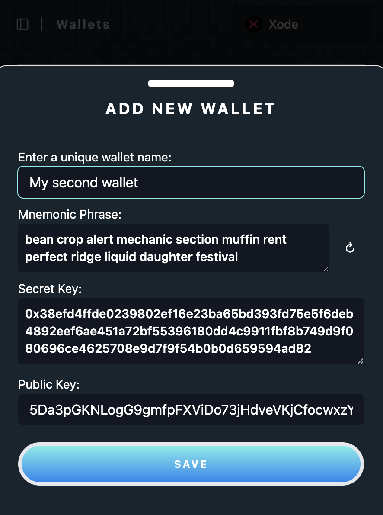
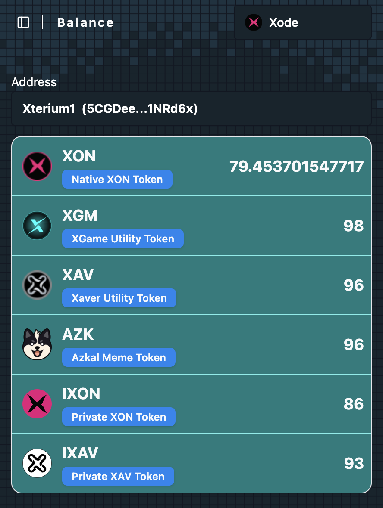
Very Important: Make sure to backup your Mnemonic Phrase and never share it with anyone! - Right after you save you will be directed to the balance tab. Here you can view your balances.
Transfering
- From the balance tab click the transfer button. You can only transfer assets with Current Balance. Also you must first transfer a native asset, e.g., XON before you can transfer other assets like IXON or XGM. To transfer, just provide the quantity and the recipient address.
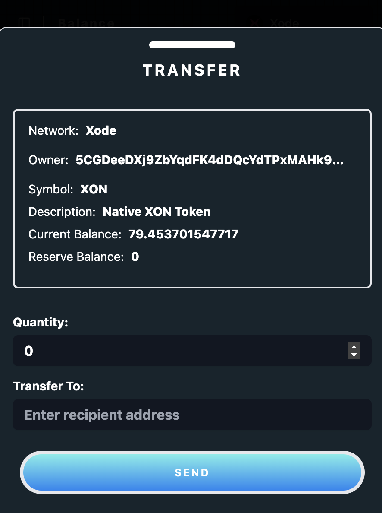
- Confirm the transfer. The wallet will show you the estimated fee in XON. Once you confirm you will be redirected back to the balance tab.
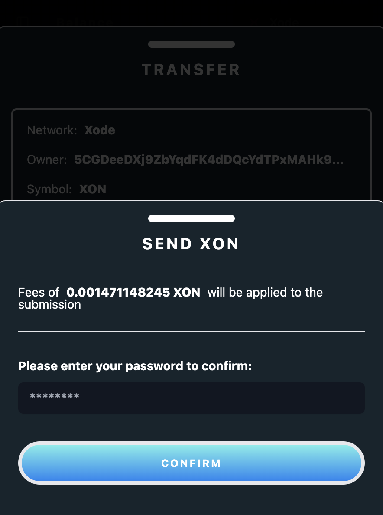
Very Important: This is a Beta version there is a delay on the finality call-back and balances may not be updated immediately, just wait a couple of seconds and refresh the balance tab. Also do not transfer non-native assets, e.g., IXON if the address has no XON.
Adding or removing asset
- Go to the Assets tab. To remove asset, just click on the delete trash icon
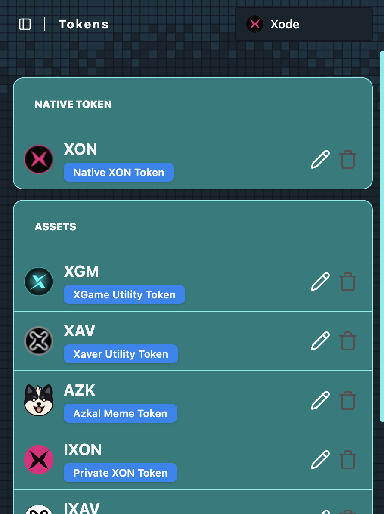
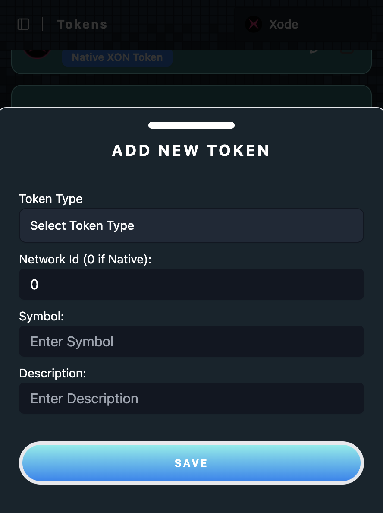
- To add assets you need to specify the type of asset, e.g., Native, Asset (pallet-assets), Contract (XON20/pallet-contracts). You make sure that the network Id is correct, for asset, check the asset id of the chain (Xode), for contract, use the contract address.
Xode Wallet (before Xterium)
Android
Note: You have to manually install the APK of Xode Wallet on your Android mobile device. It is not available in Google Play.